
Engineering
13 different ways to run a dev sandbox for agentic coding

25 min read
Like most of you, I use agents every day to build software. Today, there are many options for where to run those agents. The default is your local laptop but that leave's much to be desired, most pressingly isolation and risk mitigation as we ask our agents to do more and more for us.
What we wanted
Here is the full wish list of everything I could ever want from a great agentic development environment:
- Run any coding agent, use any subscription/key
- Whatever tools (CLI, MCP, etc) are needed, it has them or can get them
- It has access to any systems or services it needs for dependencies or data
- I can access it from anywhere - laptop, mobile
- I can close my laptop and it keeps working
- It can't destroy my laptop or "go rogue" using my local keys and credentials
- Accidental reboots don't cause me to lose work
- It feels interactive. I can start an agent as fast as I can locally. I can keep prompting a session and get good responsiveness.
- It can handle long running agents, even ones that run for days.
- I can use any development tool I like (VSCode, Tortie, Paseo)
- It has enough hardware (CPU, RAM, Disk) to do the development work I need it to.
- It has the right kind of hardware for the work I need to do (e.g. works for building iOS, macOS, or Windows apps)
- Agents can use browser and computer, e.g. for testing and research) without interrupting my (human) work
- Doesn't cost too much
- I can easily share what I'm working on with my teammates midflight
The Baseline - My laptop
We're up against an extremely strong baseline: a modern MacBook Pro. If you're a solo developer and you're okay with the risks to your laptop and your local credentials, it's tough to beat your own laptop. It runs any coding agent, any tools, has access to needed systems, it's fast, can handle long running agents, has the right kind of hardware for the work, can be setup for mobile remote control, and has no incremental cost.
This isn't a sandbox, but if it works for you, stop reading. You've already got the best possible development environment.
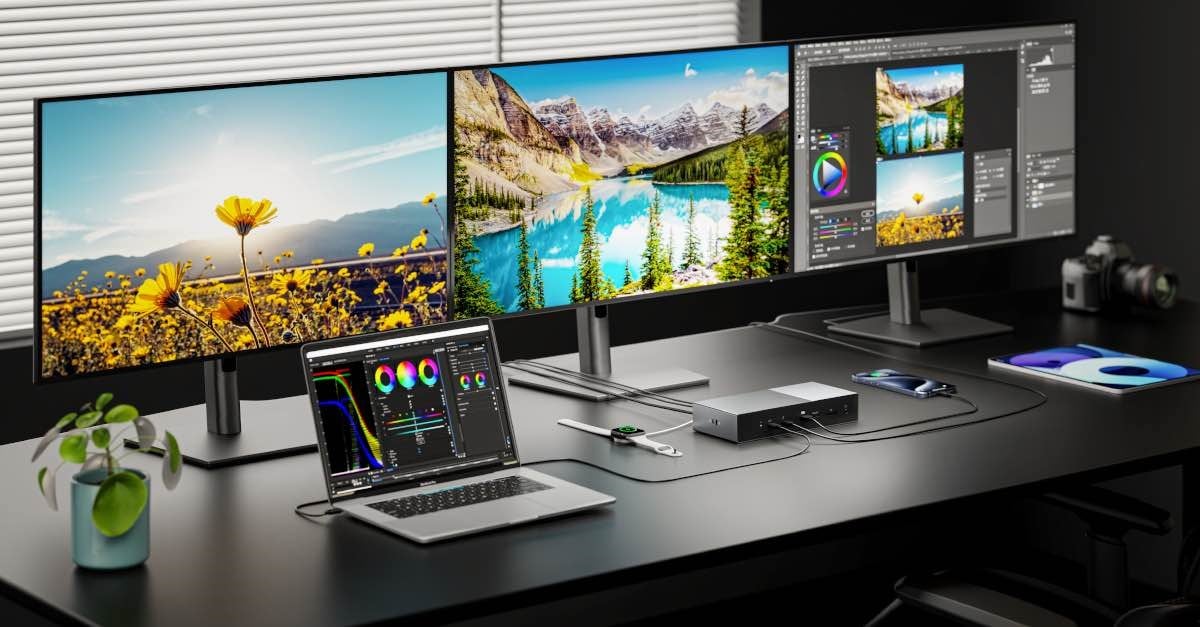
However, if you are concerned about the risks of exposing your live machine. Or, like me, you're tired of leaving your laptop open every time you walk, drive, or ride a train, then read on.
The Best Option - A Mac Mini or Studio in the cloud or under your desk
If you happen to have a spare Mac laying around, or if you're able to find a cloud Mac that's not out of stock...
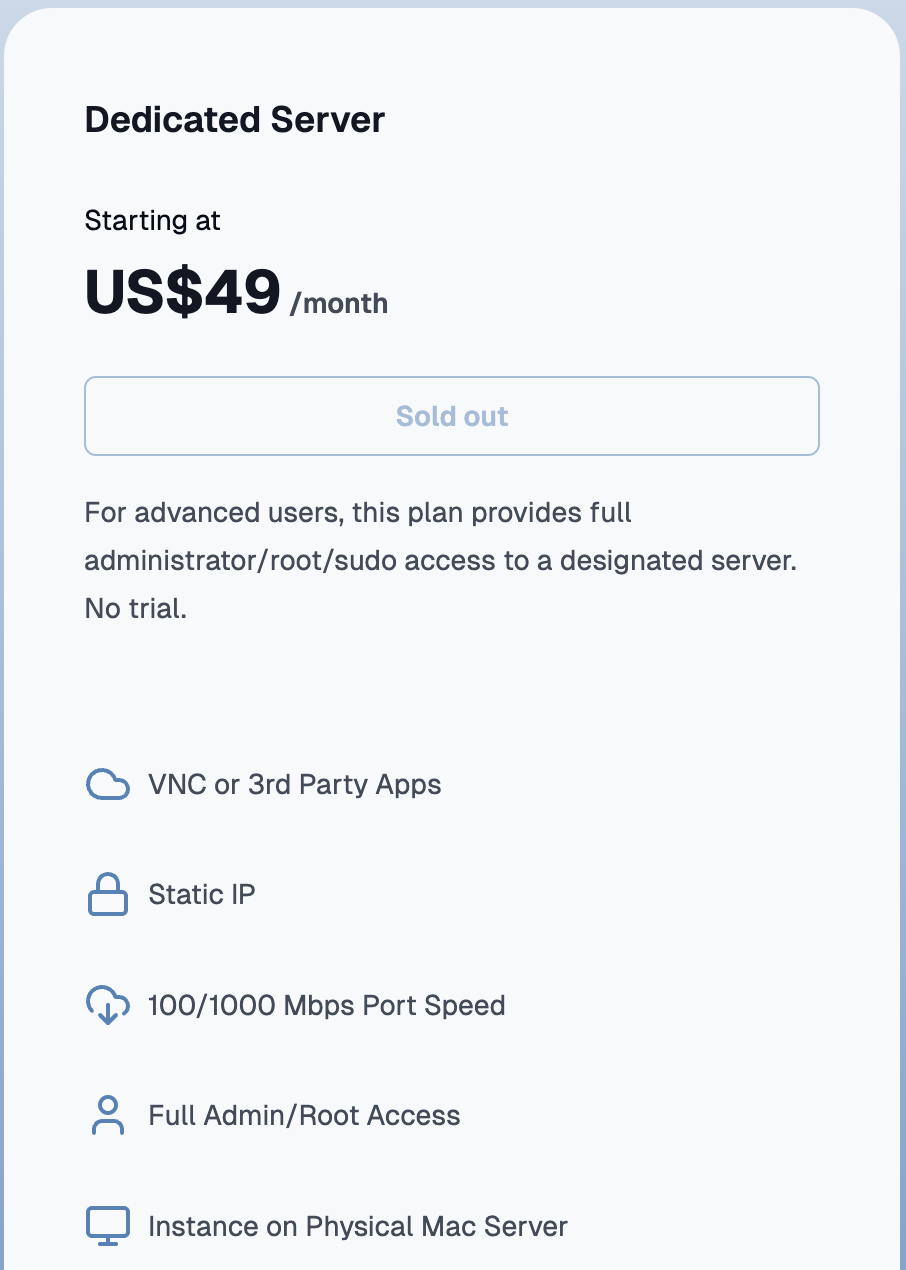
... then this is probably your best option. Other than easily sharing what you're working on with teammates midflight, this covers all the rest of the requirements. But if you don't have one handy, they can be pretty expensive to buy new, and very expensive to rent (in-stock ones start around $200/month for a 16GB M2).
The Free Options - A side of compute from your coding agent
If you use Claude Code, Codex, or Cursor then you can get free Linux cloud sandboxes for nothing more than the cost of your agentic tokens/subscription. This is a pretty great deal.
| Claude Code web | OpenAI Codex cloud | Cursor Cloud Agents | Grok Bot computer | |
|---|---|---|---|---|
| Environment lifetime | Task/session-oriented, reclaimed | Task-oriented/containerized | Task-oriented VM | Persistent |
| Known hardware | ~4 vCPU / 16 GB / 30 GB | OpenAI does not publicly specify standard CPU/RAM | Cursor does not publicly specify standard CPU/RAM | Not publicly specified |
| Separate compute charge | No | Generally no separate VM meter; usage against Codex allowance/credits | No explicit VM hourly charge; model/API usage billed | Included with eligible subscription/usage |
| Parallelism | Multiple sessions | Excellent | Excellent | Multiple Bots share computer; can also spawn Cloud Agents |
| Browser/GUI | Limited compared with Cursor | Agent environment; not fundamentally a remote desktop product | Full browser/desktop/computer use | Full persistent browser/desktop |
| Persistence of installed junk/data | Weak/moderate via cached setup | Cached environment, not your permanent machine | Builds/snapshots accelerate startup | Strong |
| SSH into it yourself | No, not really the model | Not as a normal personal dev server | Agent desktop takeover, but not “your server” | Interactive computer, but controlled product |
| Root/custom OS/kernel | No | No | No | No |
Claude Cloud Environments
Fast startup, powerful machine, pretty full control over what you can install (including other agents like Codex CLI).
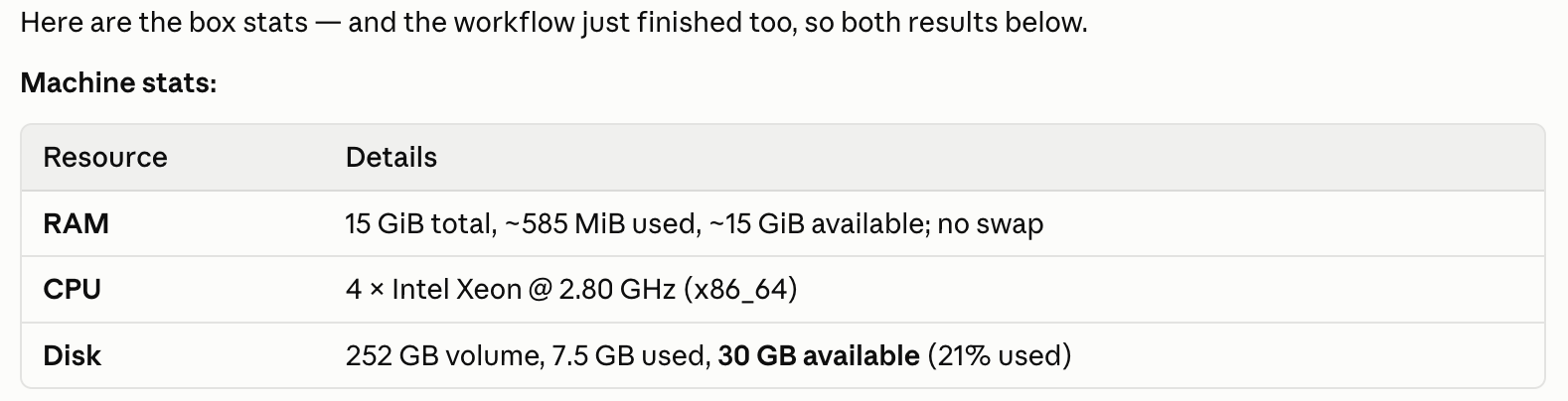
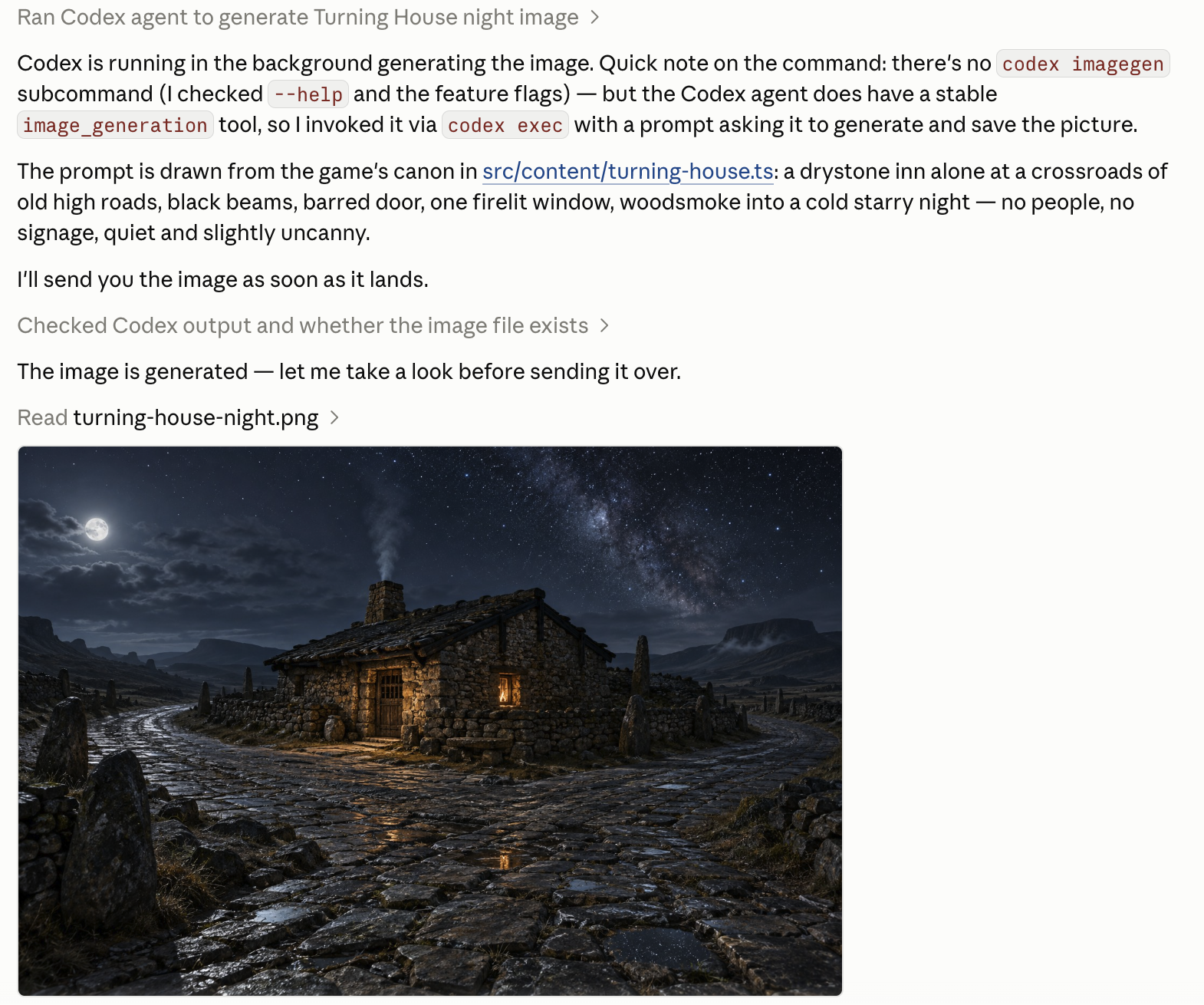
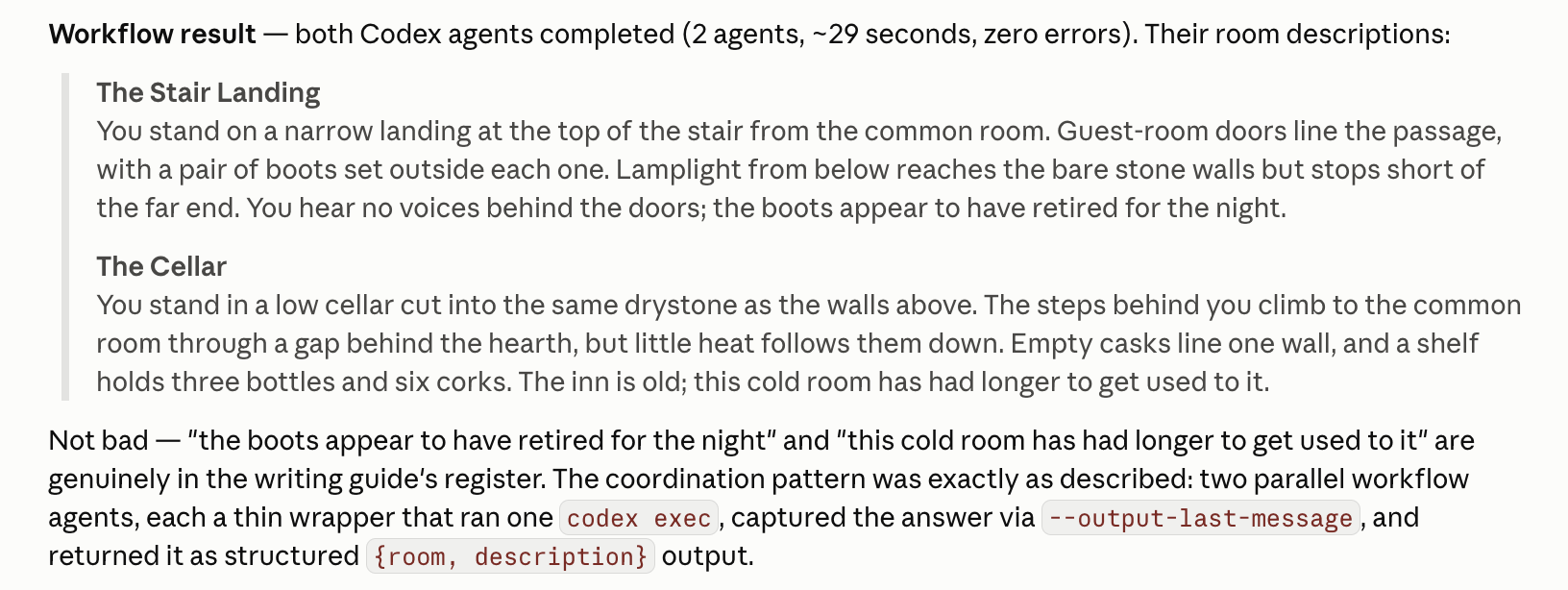
The only downsides: you can't SSH in to the machine, making it difficult or impossible to connect most external development tools (VSCode, Tortie.sh, Paseo) to the box.
Codex Cloud Environments
Codex Cloud Environments are slooooow, at least for interactive use. Expect startup times of 20+ seconds and even once started, each prompt takes a few seconds to wake up the box.
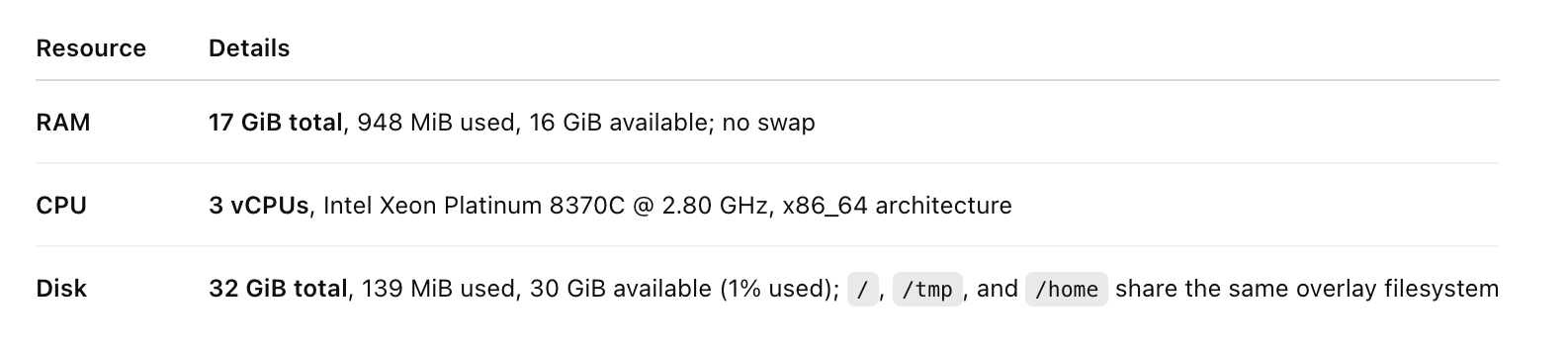
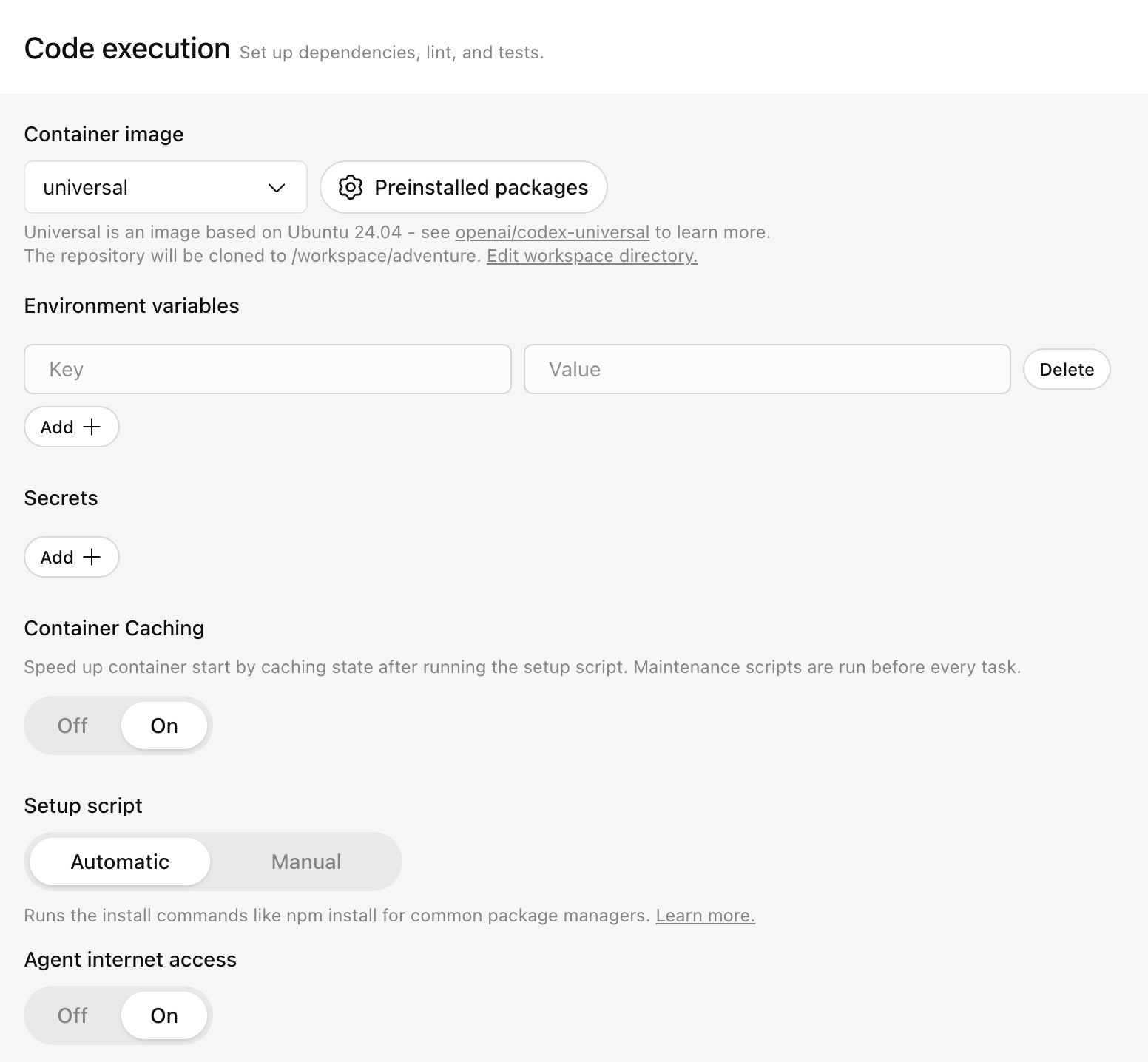
Similar to Claude you should be able to jump through some hoops and get any other agent setup in a Codex Cloud Environment. I was able to get it to install the claude cli for me, and if I spent a bit more time I'm sure I could get a Claude auth token into the env vars. Visit https://chatgpt.com/codex/cloud/settings/environments to create or edit your environments. Note that turning Agent Internet Access on is pretty critical for being able to install, search, or perform other network operations, though it comes with risks... namely prompt injection.
Cursor Cloud Agents (with a boost from Grok Bot Computer)
Cursor offers the most comprehensive cloud environment setup, with a nice skill that automatically walks through a bunch of checks to try to get your environment into the best possible state.
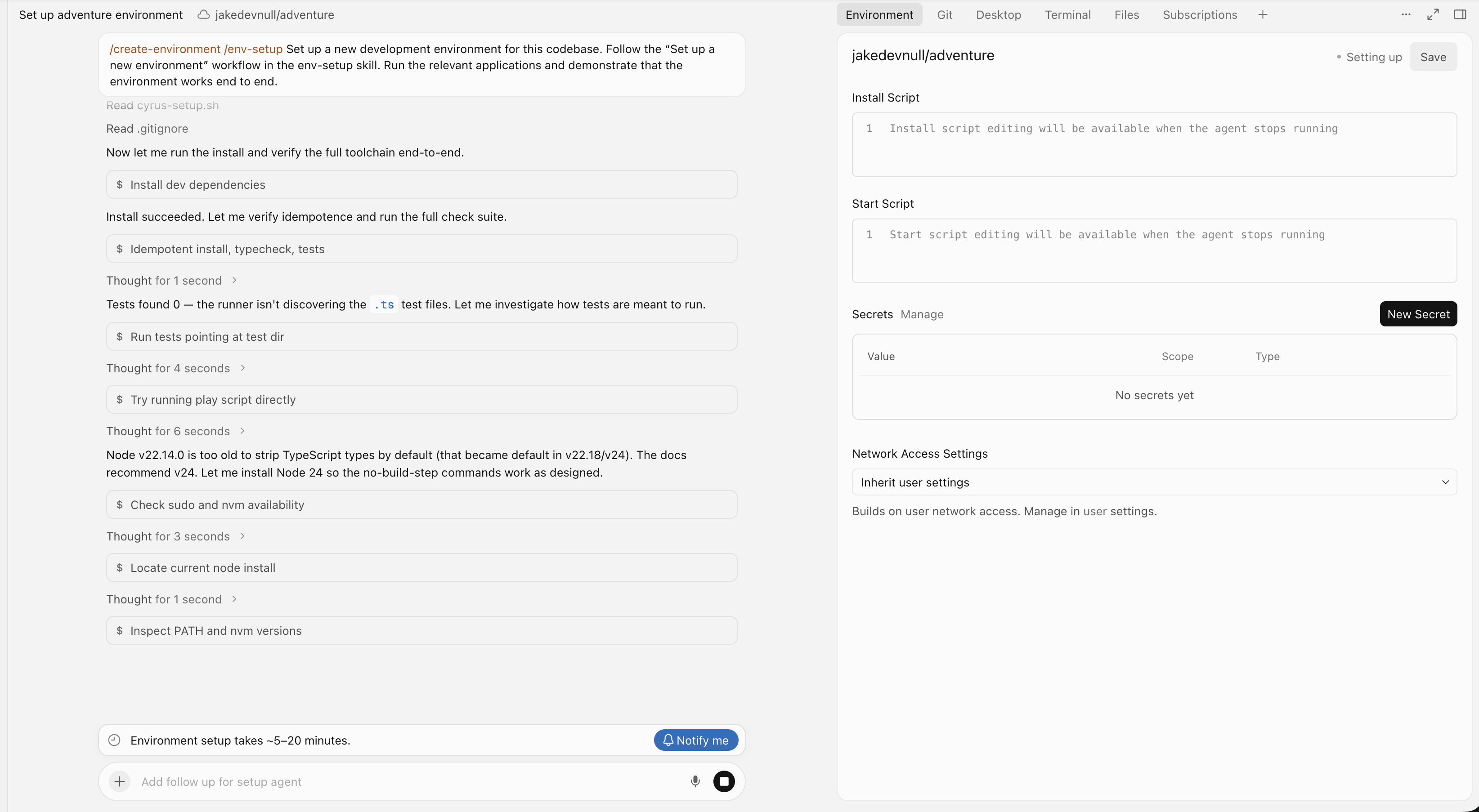
Once setup, you can easily start a new agent using this environment. It takes a while (10+ seconds) for inital startup, but you do get a full desktop environment.
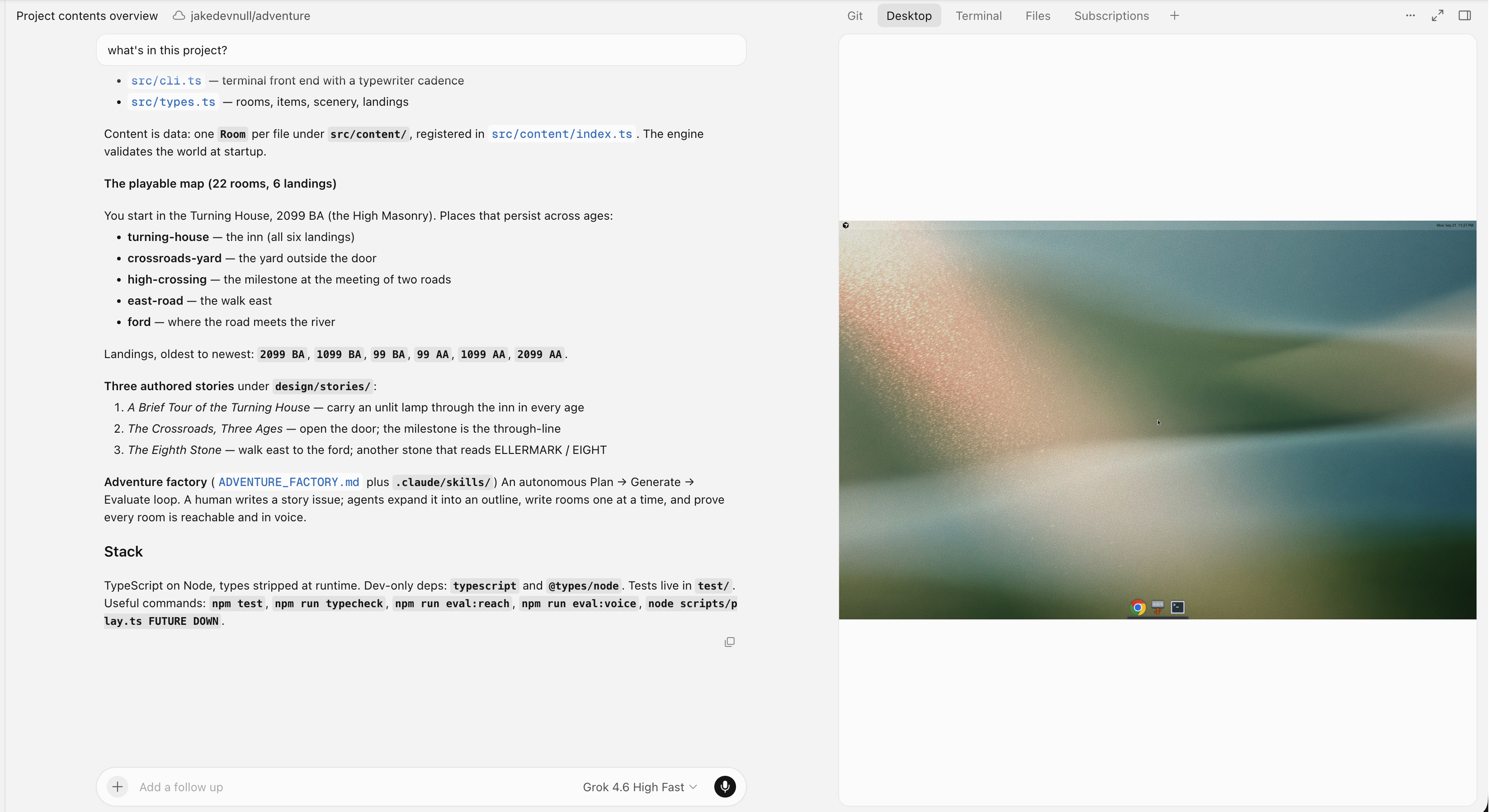
Also a respectable machine, on par with the others:

And when drawing from the xAI+Cursor native models, you get very generous usage limits even on the $20/month Pro plan. Cursor permanently doubled the size of this included pool in July 2026, giving it a massive ceiling designed so that standard individual coding tasks rarely hit the cap. But with Curosr, whenever you route requests to third-party frontier models (like Claude or GPT), they draw from a strictly capped $20 monthly budget included in the Pro plan.
This is the major downside of using Cursor. But, like with the others, you can install any agent you want and go through browser Oauth, long-lived auth token or API key to make use of it however you want.
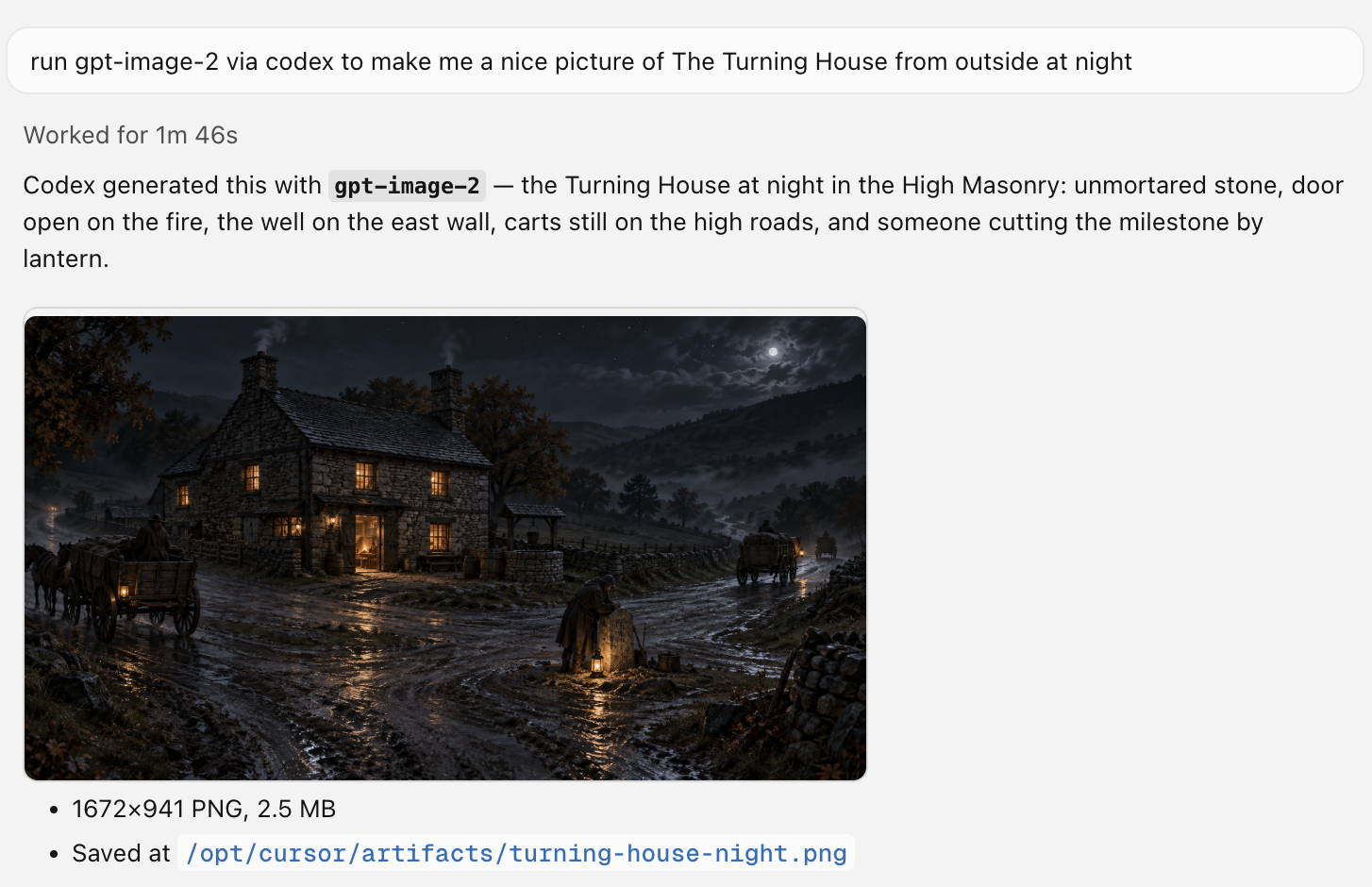
Cursor, unlike the others, also lets you run cloud agents on machines you manage. A pretty unique offering.
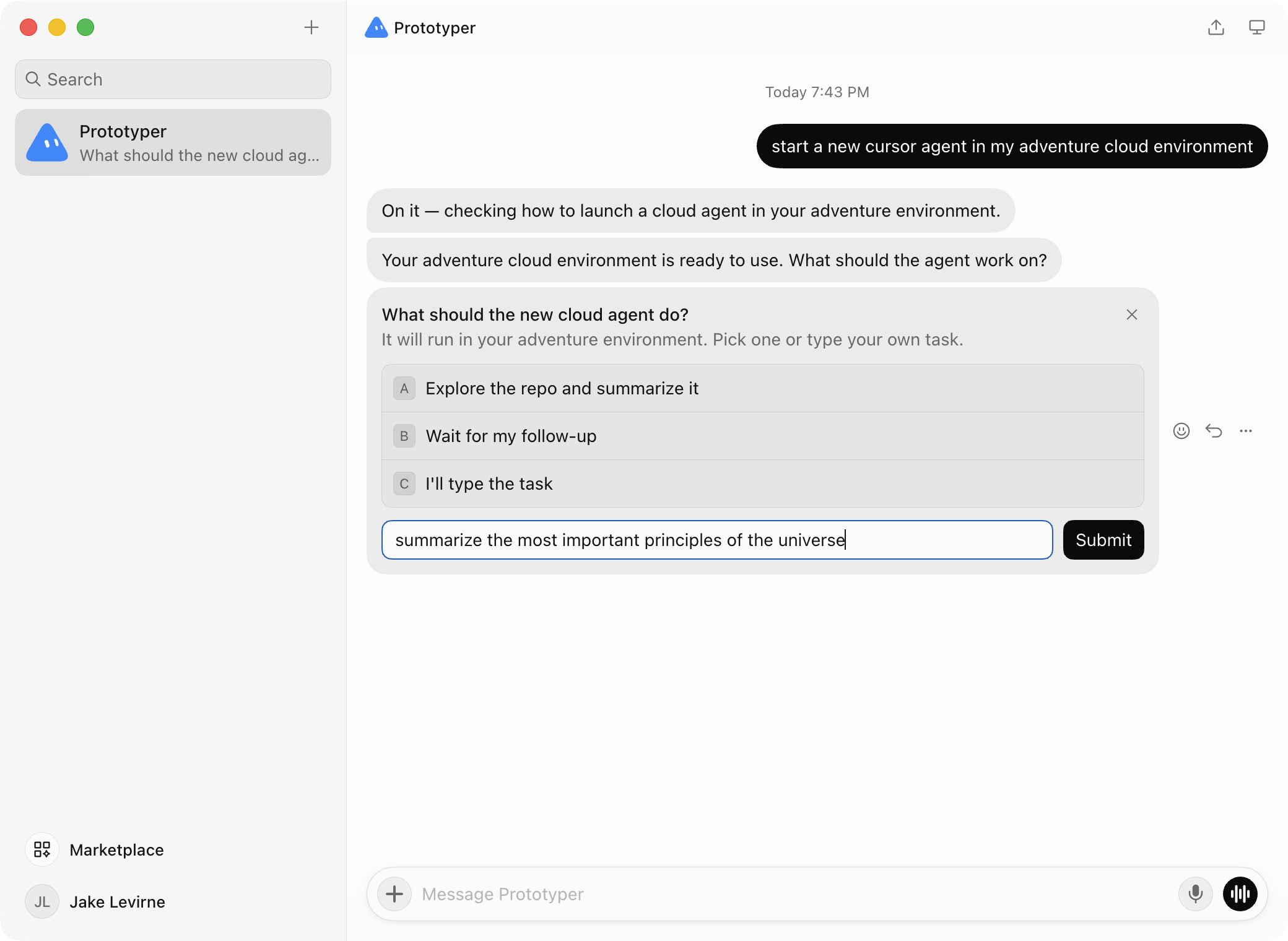
And finally, you can use Grok Bot, which is nicely integrated with Cursor, to open and send work to any of your Cursor Cloud Environments.
Bonus You can just run your agents inside of Grok's "always-on" computer. You can almost think of this as your own (free) personal cloud dev machine that comes with any paid Cursor subscription. It comes with a sizeable 8 cores CPU, 15GB RAM, and 128GB of disk. It's not going to beat your modern Mac, but it's the best of the "free" offerings. Pretty impressive.
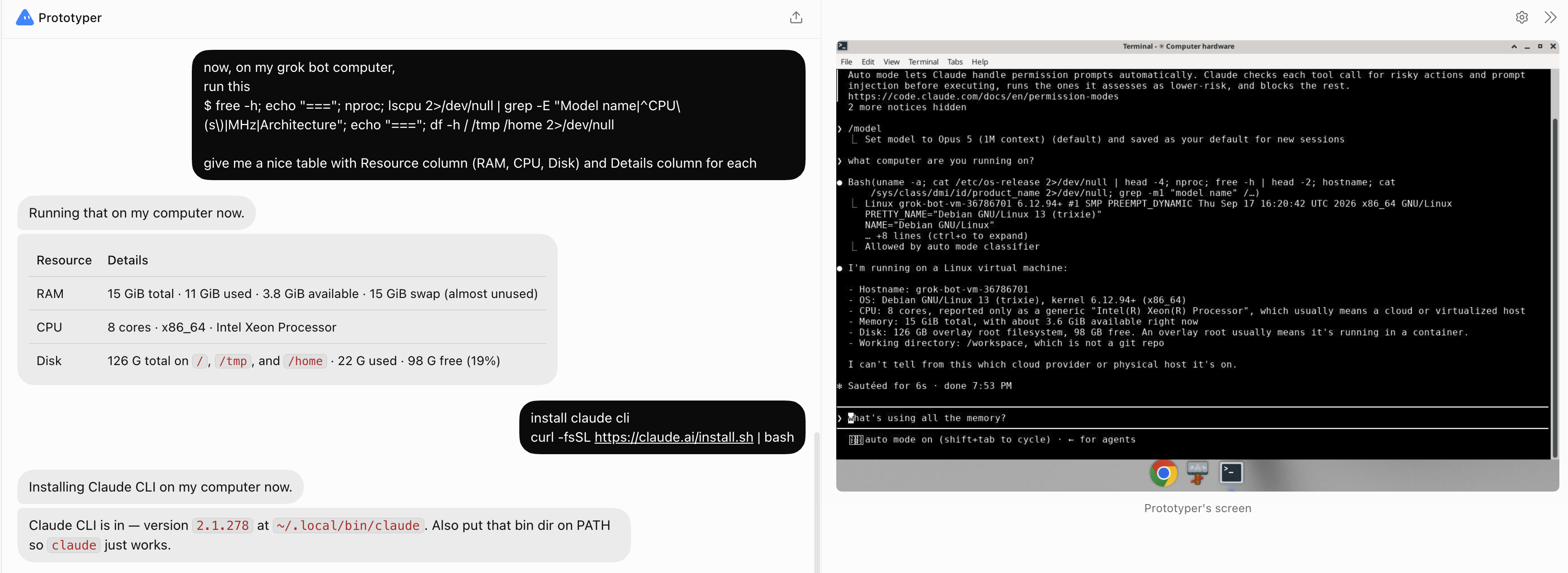
You still can't SSH in to this cloud environment, so you're limited in what dev tools you can use (e.g. no VSCode, Tortie.sh, or Paseo).
Paid Sandbox Providers - When you need scale and flexibility
If you need a lot of sandboxes, that you can spin up and down quicky via CLI/API there are now a slew of paid semi-stateful agentic sandbox providers. Below are eight of the most popular. The things they all have in common: SSH access lets you bring your own dev tools. Persistence lets you keep state (either files, or in some cases process/memory too) between the times when you access it.. even for months. And most of them offer automated scale-down capabilities when not in use.
| Provider | Resume from idle | Keep awake for a loop | Persistent disk | SSH | Headful Chrome | Inbound Networking | Compute Scalability (GPUs) | Human Ergonomics | Price shape | Dev box fit |
|---|---|---|---|---|---|---|---|---|---|---|
| boxd | Sub-millisecond | Runs until idle | Yes, 100 GB | Native | Expected | Auto-TLS subdomains | Yes (T4/A10G) | High (Invisible pause) | Per hour | Strong |
| exe.dev | Always on | Trivially | Yes, 25 GB | Native | Expected | Manual SSH tunneling | CPU-focused (No native GPUs) | High (Always on) | $20/month flat | Good |
| Morph Cloud | ~250 ms | TTL auto-pause | Yes, varies | SSH & RDP | Yes, built in | Explicit HTTP exposing | Yes (High-end GPUs) | Moderate (Strict TTLs) | MCU hours | Good |
| Daytona | Pause/resume | 60 min default | Yes, varies | Token SSH | VM type only | Integrated proxy URLs | Cloud provider limits | Moderate (Context drops) | Usage | Fair |
| Namespace | Seconds | Idle up to 8 h | Yes, varies | Native | Expected | CLI port forwarding | Yes | Moderate (Slow resume) | $0.004/min | Fair |
| Sprites (Fly.io) | 100-500 ms warm | Tasks API | Yes, 100 GB | sprite console | Yes, tested | Built-in Fly proxy routing | Yes (A100/L40S via Fly) | Low (Aggressive resets) | Per second | Fair (Agent-focused) |
| CodeSandbox | 0.5 to 2 s | Idle timeout | 7 day hibernation | Terminal via SDK | Unverified | Auto-exposed web URLs | Limited (Pro tiers only) | Low (SDK/UI-centric) | Usage | Weak |
| e2b | ~1 s | 24 h max limit | Yes, varies | WebSocket proxy | Yes, tested | Port mapping via SDK | Yes | Low (Hard 24h reset) | Usage | Weak (Agent-focused) |
But even the best of them share one or more problems: auto-scaling is not cosistent. Often these boxes will scale down even when an agent is in the midst of a long-running session if there's not enough or "the right kind of" observable activity. As a fix, on several of them you need to disable auto-scaling which defeats the theoretical cost-savings vs. an always-on VM. Several of them are severely underpowered for dev use at their lowest tier, requiring upgrades at higher costs. And many of them sacrifice developer ergonomics for their spin-down ability; specifically, dev tool connections get broken, port forwarding collapses, hot-reloading falls over.
The hidden truth: when used as a true dev box and configured for developer ergonomics, these offerings often end up costing $50-100+/month per developer. And even at that cost you're still stuck making tradeoffs on usability.
✅ A bare metal server checks (almost) all the boxes
If you've made it this far, then (like me) you have some unmet needs and a strong DIY bias. I'll re-iterate that it's tough to beat a spare Mac Mini or Studio sitting under your desk. But if you don't have one of those, and want an approach that can be shared with the rest of your team, a bare metal server can meet every one of the requirements in our list except one (iOS/Mac development... but more on that later).
If you and a few friends (teammates) want always-on isolated development environments with great ergonomics it's tough to beat an actual computer that you virtualize (divide into sandboxes) yourself as needed. With this approach, you can have cloud machines that you fully control at a price less than half the cost of paid sandboxes like Sprites or boxd.
TIP: If full control sounds good to you, but cost doesn't matter that much, a quick win is to just use an always-on tried and true old fashioned cloud virtual machine. DigitalOcean makes it dead simple for you or your agent to spin one up and it just works. No auto-scaling, hibernation, or hoops to jump through. The only gotcha is that an 8GB machine will cost you about $50-$60.
If you want the same capabilities as a cloud VM for half the price (about $22/dev/month), you can rent your own computer in a data center and share it with your friends. It just requires a little elbow grease (most of it supplied by any modern coding agent).
Let's dive in...
Choosing the server
Our first question was where to rent a bare-metal server that could run five to ten virtual machines. Each machine would have 8 to 16 GB of memory and would feel like it had four CPUs.
Fast cores, shared
Ten machines with four virtual CPUs each does not require forty physical cores. Agents spend most of their time waiting on a model or running small commands. Now and then one of them runs a build or a test suite and wants every core for a minute. The machines rarely do that at the same time.
So we looked for a small number of fast cores and planned to share them. A 16 core processor with 32 hardware threads can back 40 virtual CPUs at a ratio of 1.25 to 1. That is a mild ratio. A desktop class Ryzen chip at a high clock speed makes a single build feel fast. An older server chip with 56 slow cores would be worse for us, even though it has more cores. Those chips suit work that keeps every core busy all day. Our work is the opposite.
We expected memory and disk speed to run out long before total CPU did. That turned out to be right.
What we found
These were some example prices we saw at the time of our search.
| Provider and location | Processor | Memory | Storage | Monthly price |
|---|---|---|---|---|
| Bloom, Ashburn | Ryzen 9 7950X, 16 cores | 192 GB | 2 x 4 TB NVMe | $299, plus $129 setup |
| HOSTKEY, New York | Ryzen 9 7950X | 128 GB | 2 x 1.92 TB NVMe | $241 |
| Cherry Servers, Chicago | Ryzen 9 7950X | 128 GB | 2 x 1 TB NVMe | $233 |
| Bloom, Ashburn | Ryzen 7 7700X, 8 cores | 96 GB | 2 x 1 TB NVMe | $179, plus $59 setup |
| GTZHost, New York | Ryzen 9 5950X, 16 cores | 128 GB | 2 TB NVMe | $132 |
| GorillaServers, Los Angeles | Ryzen 9 5950X, 16 cores | 128 GB | 1.92 TB NVMe | $109 |
| GorillaServers, New York | Ryzen 9700 class, 8 cores | 64 GB | 1.92 TB NVMe | about $109 |
What we picked and what it cost us
We decided to start at half the size, with five machines instead of ten. At that size a server for about $109 a month was enough, and the project became cheap to try. That is about $22 a month for each always available development machine, before model costs.
Two of the $109 options were close. The Los Angeles server had twice the memory and twice the cores. The New York server had a newer and faster processor, and it was near us. We work interactively in these machines, so network delay is felt on every keystroke in a terminal. We chose New York.
The server we ended up with has these parts.
- An AMD Ryzen 7 9700F with 8 cores and 16 threads
- 64 GB of DDR5 memory
- A 480 GB SATA SSD
- A 1.92 TB NVMe drive from an enterprise product line
- A 1 Gbps network port and five public IP addresses
The choice of 64 GB had a cost that we only understood later. The server is rented, so the memory cannot be upgraded. At 8 GB per sandbox, about five can be awake at once with room left for the host. Every design choice about putting idle sandboxes to sleep follows from that one number. With 128 GB we might never have built that part.
Mac / Windows servers
With the setup we describe here, it's easy enough to run Windows sandboxes on the exact same hardware with the exact same virtualization we use for Linux VMs.
The gotchas is macOS. Running a modern Mac development sandbox requires Mac hardware (specifically M-series chips). There is no viable way around this. Possible approaches include Mac Mini/Studio under your desk, falling back to your laptop for iOS/macOS development, renting a Mac in the cloud if you can find one, or using iOS build services like Bitrise, Codemagic, or GitHub Mac CI runners.
The first hours on the server
All of these steps were carried out by my coding agent, with my direction. We started just from the machine itself (an email from the provider gave us login details) and had the agent do every step of work. We got the conversation going with a single prompt:
we have a brand new bare metal server available. nothing done on it. You can SSH to it via: XXXXXXXXXXX

our goal is to create an automated Firecracker microVM factory for agentic dev environments. assess whether this is a good approach as opposed to something else I could do with this bare metal box.
As you can see, at first I was biased towards a microVM approach. Mostly because I was influenced by all the free/paid sandbox providers I had researched. But luckily my last sentence gave my agent room to push back. And I'm glad it did. I won't walk through the entire conversation. But here are the highlights, and especially the key decisiosn we made.
Things started out with basic host naming, DNS records, disk setup and partitioning. I literally made no decisions and took all of Claude Fable's recommendations.
Hardening
From my DigitalOcean days, I knew how important it was to harden a bare VM from the ills of the internet badies. But I didn't need to do anything here either... the agent was proactive.
The server had been online for one hour when we installed fail2ban. It had already logged 170 failed login attempts. We turned off password login and allowed only SSH through the firewall. We also turned on automatic security updates.
The main decision - how to virtualize the machines
Where we started
Our plan was a set of Firecracker virtual machines. Firecracker is the small virtual machine monitor that Amazon built for Lambda. Most hosted sandbox products for agents use it. It starts a machine in about a tenth of a second and adds only a few megabytes of overhead per machine.
But after a lot of back and forth, we teased out all the requirements that started this article, as well as some more nuanced needs:
- Heavy file work such as package installs needs fast disk access.
- We wanted Docker to work inside each machine with no special setup.
- We did not want to write and maintain our own control software.
What we looked at
We researched each serious option and wrote down why it did or did not fit.
| Option | Why it did not fit, or did |
|---|---|
| Firecracker | Built for small machines that live for seconds or minutes. It has no good way to reclaim memory from a machine that runs for weeks. Its faster disk backend was still marked as a preview. Our host kernel was not on its supported list. The open source control software around it was either abandoned or heavy. |
| Cloud Hypervisor | A better fit than Firecracker for machines that live a long time. It still needs control software, and the one maintained option had a serious gap for us. |
| Flintlock | The maintained control software for Firecracker and Cloud Hypervisor. Its interface can create and delete a machine and nothing else. It cannot stop and start one. Deleting a machine destroys its disk. It also requires LVM storage and cannot use ZFS. |
| Kata Containers | Gives containers a virtual machine boundary. Running Docker inside is not a supported use, and published disk benchmarks were poor. |
| gVisor | Shares the host kernel and intercepts system calls. Every file operation pays a cost, so tools such as git and npm slow down. Companies use it where hardware virtualization is not available. We had hardware virtualization. |
| Sysbox | Containers with good support for Docker inside. It shares the host kernel. Since we care about clean state and not security, this was a reasonable fallback. |
| Hosted products and newer projects | Some needed a Kubernetes cluster. One had recently become closed source. One was described by its authors as suitable only for evaluation. One had no server interface. |
| Incus | Chosen. See below. |
Why Incus
Incus is the community continuation of LXD (a modern virtualization manager for bare metal machines). It manages full virtual machines through QEMU. It has a documented interface and a long term support release. It also manages images and snapshots.
The deciding point was how we use these machines. A sandbox lives for weeks. It is started and stopped daily. It must keep its disk between uses. Incus supports all of that directly. It also has a feature that solved our memory limit. A stateful stop writes the memory of a machine to disk and shuts it down. Starting it again restores the memory, and every process continues from where it was. An agent that was in the middle of a task continues. Ten sleeping sandboxes use disk space and no memory.
We accepted three known limits.
- An idle machine does not return memory to the host by itself. Putting it to sleep is how we reclaim memory.
- A normal start takes about nine seconds, not a fraction of a second.
- The version packaged by Ubuntu was frozen at an old release. We installed the long term support release from the maintainers' own package source instead.
How we shaped the platform
Identity belongs to the sandbox
Each sandbox is created with exactly one identity. Everything inside comes from that identity. That covers these items.
- The GitHub token
- The git author details
- The Claude login
- The model provider keys
A small registry file records which identity owns which repo. Our tool will not clone a repo into a sandbox that belongs to a different identity.
This one rule removed many small decisions. We never have to ask which key a command will use. There is only one set in the machine.
Secrets
We keep secrets in 1Password, with one vault per identity. Values that are not secret do not go in the vault at all. They go in the sandbox's manifest file, which is kept in git where they can be read and compared over time.
We considered whether secrets should be written to disk inside a sandbox. The alternative is to fetch them when a service starts and keep them only in memory. We chose plain files that only the owner can read, on a ZFS dataset that is encrypted. We had two reasons. Every agent tool writes its own login files to disk anyway, so a promise to keep secrets off the disk could not be kept. Fetching at start would also require a 1Password token inside every sandbox, and that token would be more powerful than the secrets it fetched.
The encryption had to be decided early. ZFS cannot add encryption to a dataset that already exists. The key is stored on the host. So the encryption protects the data if the drive is removed from the server. It does not protect against someone who controls the host.
One safety rule came out of testing. When the tool updates the secrets in a sandbox, it first resolves every value. If any value is missing, it changes nothing. An outage at the secrets provider must not replace a working set of credentials with a partial set.
The problem of many repos
On the laptop an agent in one repo can be told to fix something in another repo, because every repo is present. A sandbox has only its own repos. We thought about one large machine holding everything. That would have brought back the shared state we were leaving, and it could not hold three identities cleanly.
We settled on three layers.
- A manifest lists every repo a project needs. Most work that crosses repos stays inside one project.
- A small command inside each sandbox clones another repo on request, using the sandbox's identity. An agent can run it when asked to change another repo.
- A read only copy of all repos, shared from the host, may come later. We decided to wait and see whether the second layer is enough.
Reaching a sandbox
The sandboxes sit on a private network on the host. We considered three ways to reach them.
A separate jump server would add nothing, because the host already does that job. Running Tailscale inside every sandbox gives each one its own name on that network, but a sleeping sandbox drops off the Tailscale network, and then nothing can connect to wake it. We chose to run Tailscale on the host only. The host advertises the private network to our other devices, and DNS for sandbox names is answered by the host. A name therefore keeps resolving while its sandbox sleeps.
For SSH, a generated block in the laptop's SSH configuration routes each sandbox name through the host. A small program on the host receives the connection. It starts the sandbox if it is asleep, and then it passes bytes through. This is what makes a fixed name work in every tool. Paseo and VS Code both use the normal SSH client, so neither needs to know anything about the platform.
Things we designed but have not built
We designed a balancer that keeps about five sandboxes awake. When a sixth is opened, it puts the one that has been idle longest to sleep. It never puts a sandbox to sleep while an agent is working in it.
We designed a maintenance agent for the host. It would start as scripts that send alerts to Slack. Later it would become an agent with a short list of actions it may take without asking. A reboot of the host would always need a person's approval. It would run on the host under its own user account, started on a schedule. Any agent that can restart the host cannot be one long running process on that host.
We planned backups in two steps. The first is nightly ZFS snapshots kept on the server. The second is file level copies of the working folders to Cloudflare R2.
Local browser can view sandbox apps
As we built our web apps on these sandboxes, we needed to be able to view and test them from our local browser. Any device on our Tailscale network can already open a port on a sandbox by name. The missing part was that agents did not know the conventions.
We added a short guide that Claude Code and pi load in every sandbox. It gives an agent these instructions.
- Listen on all network addresses.
- Do not run the server as the agent's own foreground command.
- Run a small helper that prints the address to open. The first version of the guide required a terminal multiplexer for every server. That was more than a quick test needs. The guide now asks for a background process, and for the multiplexer only when the server must outlast the agent's session.
With this, it's dead simple for any team member to view previews of any app in development:
Connecting from the desktop and from a phone
Once the tests passed, we connected the actual Paseo apps. Both worked on the first day, and each needed one detail that the tests could not have told us.
The desktop app
The Paseo desktop app asks for one address when you add a host over SSH. We entered the sandbox name with the port of our local password program added as an option. We left out the user name, because the SSH configuration on the laptop already supplies it. The app connected, and the repo in the sandbox appeared as a project.
We hit one surprise. The project we had registered during setup had disappeared from the list. Paseo had rewritten its project file as an empty list at the moment the desktop app first connected. We registered the project again, and it stayed through a restart of the service. Our best guess is that Paseo removes a project when its only session came from an agent run that has closed. We have not confirmed that in its source.
The phone
The phone uses a different path, because the iOS app has no SSH client. We installed Tailscale on the phone and signed in to the same account as the laptop. With Tailscale on, the phone resolves the sandbox name and can reach its private address.
In the Paseo app we added a direct connection with the values and get a beautiful experience:
The values do not change
We set this up once for each sandbox. The name stays fixed because the host keeps a permanent address record for it. The port is always the same. The password is stored on the laptop and inside the sandbox. None of these change when the sandbox sleeps or wakes, or when the host restarts. Rebuilding the base image does not change them either.
Deleting a sandbox and creating it again is the one exception. The new sandbox gets a new password. We chose that on purpose, because deleting a sandbox is a reasonable moment to retire its credentials.
The phone has one limit today. It cannot wake a sleeping sandbox, because only the SSH path starts one. While a sandbox sleeps, the phone shows it as offline. When the desktop app or any SSH connection wakes it, the phone reconnects by itself with the saved values.
Where it stands
The numbers today are as follows. Remember, for our active sandboxes there is effectively zero wake-up latency because there's no hibernation.
| Measure | Value |
|---|---|
| Create a sandbox from its manifest | about 30 seconds |
| Put a sandbox to sleep with its memory saved | about 26 seconds |
| First SSH connection to a sleeping sandbox | 10 to 14 seconds |
| SSH connection to an awake sandbox | about 1 second |
| A sandbox created by request from another sandbox | about 24 seconds |
| Sandboxes awake at once, at 8 GB each | five, with room to spare |
What we would tell someone starting this
- Write down how you will use the machines before you choose how to run them. We began with a tool made for thousands of machines that live for seconds. We needed fifteen machines that live for weeks.
- Decide what the isolation is for. Clean state and security lead to different designs.
- Choose memory with care if you rent the server. It is the one limit you cannot change later.
- Give each machine a single identity. Many later questions then have only one possible answer.
- Test from the outside, the way your tools will connect. A test that loads a friendlier environment than your editor does will pass while your editor fails.
- When a failure seems random, make the system report its own state at the moment of failure before you try again.
- Make every setup step safe to run twice, and verify that by running it twice.
- Have a design attacked before you build it. Our worst flaw was found by reading, not by testing.
- Do not let a privileged machine fetch its code from a place that a less privileged machine can write to.